Category: Security

  • Protecting Your Passwords: Treat Them Like Underwear

    In the digital age, passwords are the first line of defense against cyber threats. They guard our personal and professional information from unauthorized access. Given their crucial role, it’s essential to handle passwords with the utmost care. An effective and memorable way to think about password security is to treat your passwords like underwear. This analogy may sound amusing, but it underscores several key practices that can significantly enhance your digital security. Here’s how you can apply the “underwear rule” to your passwords:

    1. Change Them Regularly

    Just as you wouldn’t wear the same pair of underwear for days on end, you should not keep the same password indefinitely. Changing your passwords regularly is a simple yet effective way to minimize the risk of them being compromised. Passwords should be updated every few months, especially for accounts that hold sensitive information, such as your email, banking, and social media accounts. Regular changes help ensure that even if a password is leaked, it won’t provide long-term access to your accounts.

    1. Don’t Share Them

    Sharing your passwords is akin to sharing your underwear—it’s something you simply don’t do. Your passwords are personal and should remain private. Sharing them increases the risk of unauthorized access and data breaches. If you need to grant someone access to an account, consider using secure methods such as password management tools that allow shared access without revealing the actual password. Always remember that once a password is shared, it is no longer secure.

    1. Keep Them Private

    You wouldn’t leave your underwear lying around in public for everyone to see, and the same should apply to your passwords. Avoid writing down passwords in places where they can be easily found, such as sticky notes on your desk or in a notebook that is not secured. Instead, use a password manager to store and manage your passwords. These tools encrypt your passwords and make them accessible only to you, ensuring that your credentials are kept private and secure.

    1. Use Strong, Unique Ones

    Just as high-quality underwear provides better comfort and durability, strong and unique passwords offer better protection against cyber threats. A strong password typically includes a mix of upper- and lower-case letters, numbers, and special characters. Avoid using easily guessable information such as names, birthdates, or common words. Each of your accounts should have a unique password. This way, even if one password is compromised, the others remain secure.

    1. Keep Them Clean

    In the same way that you keep your underwear clean, ensure that your passwords are “clean” from being reused across multiple sites. Reusing passwords increases your vulnerability because if one account is breached, all accounts using the same password are at risk. Keep track of your passwords with a password manager, which can also help you generate strong, unique passwords for each of your accounts.

    1. Beware of Exposure

    Just as you wouldn’t expose your underwear to the public, be cautious about exposing your passwords online. Be wary of phishing scams and malicious websites that try to trick you into revealing your passwords. Always check the legitimacy of websites and never enter your password on a site that you do not trust. Additionally, enable two-factor authentication (2FA) wherever possible to add an extra layer of security. This ensures that even if your password is exposed, an attacker would still need the second form of verification to access your account.

      Conclusion

      Treating your passwords like underwear might seem humorous, but it serves as a powerful reminder of the importance of password security. By changing them regularly, keeping them private, using strong and unique passwords, and being cautious about exposure, you can significantly reduce the risk of unauthorized access to your accounts. Remember, your passwords are the keys to your digital kingdom – protect them with the same care and attention you give to your personal belongings.
    1. CommBank Phishing Scam Update

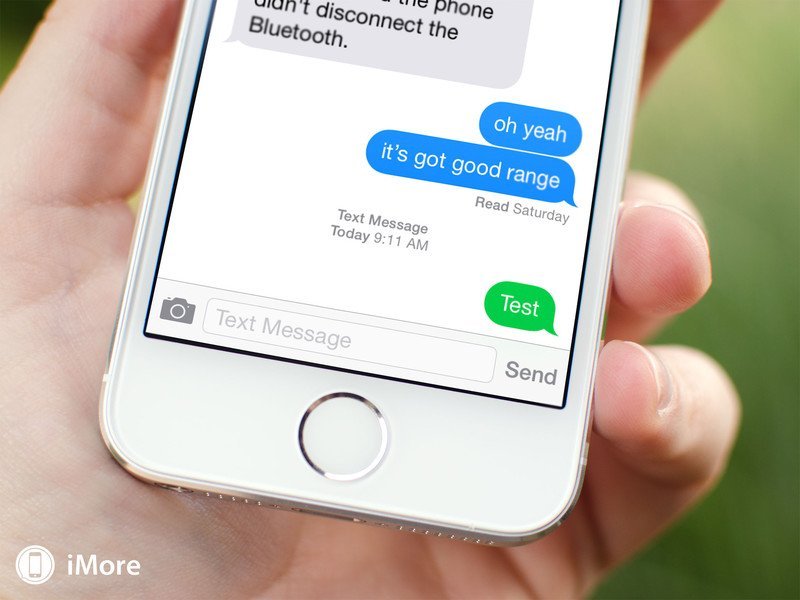
      Well, they are at it again, I just received another message this morning, saying that my account was locked and to go to a particular link in the message to unlock the account.

      Once bitten, twice shy – I now at least have a number which I can pass onto CommBank for their investigation team to investigate as well.

      I was lucky that the CommBank security team picked up on the activity, locked the account and sent me a message.  I wonder how many others that get caught out, and the banks don’t pick up on until after the fact and then it takes time to get the funds returned.

    2. CommBank Phishing Scam

      I have been an advocate of ensuring you know what you are doing, and double check everything before acting upon, so you don’t fall foul of phishing scams.

      I can’t be more amendment on the fact, as you don’t know who is out their trying to get your hard earn cash.

      Back Story

      Earlier this week, I was phoned by a call centre claiming to be from the Australian Tax Office (ATO) with a recorded message saying that I had outstanding debts and was also implicated in Tax Fraud, and that there was a warrant out for my arrest.  I knew this was a scam, as I have been targeted 4 time before, as well as another family member.

      Anyway, I wasn’t going to let this go unanswered, so I rang the number back, strung them along for a little while, then mentioned I worked for the Australian Federal Police (which of course I don’t).  This is where the abuse started – they realised they had been caught out, and let lose with all asunder with foul language that I won’t even repeat.  For the next 3 hours, I repeatedly redialled the number, and just left the line opened until they hung up.  Occasionally, I would engage them, by saying I am returning a call – and when they asked for my name, giving them a fictitious name – which threw them in a loop as it wasn’t the name they had against my service number (they’ve obviously scraped the details from somewhere).

      Finally, they got that sick of me, that they actually blocked my number.

      The reason I did this, is depending on where they are located, is while I had them on the line – it was one less person they were talking too, and if they were overseas, it was costing them money in the local to international call costs.  It wasn’t costing me any more, as my phone plan has unlimited mobile to national landlines at no extra cost.

      The Story

      Well, I fell victim of a phishing scam.  Yes, even the best of us do things without thinking.  I got an SMS on my mobile (smartphone) with a link to a website.  I naturally didn’t think twice, as I thought it was from the bank and followed through.

      The basis of the SMS was that the Commonwealth Bank was testing their SMS and needed me to do some checks, which included me giving them my mobile then a special code.  The first clue should have been, they were asking for my mobile number – but it didn’t click.  Did what they asked, and didn’t think twice about it.  Yep – was busy, and didn’t really think.

      Anyway – what I had done was give someone enough information to try and do a card less transaction at an ATM.    Anyway, I guess they tried to withdraw more than the account had, and Commonwealth Bank put a stop on my account, sent me an email, which meant I needed to go to the nearest branch and deal with it,

      What it means:-

      • They will need to close the account.
      • Create a temporary account.
      • I submitted a Statutory Declaration saying someone tried accessing my account without my express permission (i.e. phishing scam).
      • CommBank open a new account.
      • New Cards (possibly).
      • And any direct debits / scheduled transactions need to be changed.

      In short, with financial institutions especially, if you get an SMS with a link to a web page to test things, before you do it check with them.  They usually have this sorted before going live.  Even the best of us, can slip up.

    3. Computer Security Precautions

      On a sunny Friday afternoon, I had a frantic phone call from a client. They had a phone call from a person claiming to be from their phone and internet carrier, claiming that their method of connecting to the internet would be out of service for several weeks and that they needed to show them how to get around the outage.

      Sounds plausible, right?  Without thinking too hard about it, you might say sure, what do I need to do.  The caller instructed my client to go to a website, and download TeamViewer (a tool that several support staff use to connect to a computer remotely); the company that developed TeamViewer is reputable and had no connection with the caller, and install the software.

      The installation of the software was configured in such a way, that gave the caller unattended access to my client’s computer.  Now the caller had complete access to my client’s computer, and started opening various applications while trying to gather other personal information over the phone, like which bank they dealt with and how much money they had in the account.

      In short, this was a definite case of someone wanting control of the computer to gather information about my client, get banking details, and to even possibly install ransom-ware (software that is installed on the victim’s computer or digital device, encrypts, and holds the data hostage until a ransom is paid).

      In short, the telecommunication/internet providers in Australia (unless it is an unplanned outage) notify users via letter, email or text message of an impending outage and advised them of a number to call if they have any concerns.

      My role in this situation was to uninstall the version of TeamViewer, restore the computer to an earlier point, check for any other software that may have been installed and remove, then run a virus checker over the computer to ensure any software signatures that the virus checker knew of as being a threat was removed.  I also installed a backup utility from CrashPlan which will backup data files to a remote site (or data centre) to protect your music, photos and other documents you might have. This way, if something goes wrong with your computer, such as hardware failure (yes – I have had a motherboard and hard disk drive fail and lost data) or virus infection or ransom-ware, you can recover most of your data prior to the issue. The reason I say most, is in the case of CrashPlan, it will only be able backup remotely while connected to the internet.

      My advice to anyone going forward, report this incident to the police fraud squad, contact his phone and internet carrier and the bank (if you have given details) to advise of the possible breach in security and organise measures to be put in place to prevent any further loss.

      Going forward, if you get a phone call in future from anyone claiming to be from their internet provider, to get some sort of authentication from them – that is, get them to give you some sort of details about the account that they would have in front of them (i.e. account number) if they were from the provider.  If they can’t do that, get a name from the person and a phone number and then tell them you’ll call back.

      Then contact the provider’s support number, which will be on their website, and any bills they send for providing the service, explain that you had a call from person x and they were walking you through a process to do something, and could they transfer you through to them. If the provider cannot find such a person in their system, or the process that they were going to walk you through isn’t something that they know about or do, then all you have lost is the cost of a phone call, and a little time in protecting yourself.

    4. Phishing Attack Uses Domains Identical to Known Safe Sites

      I have just read an interesting article where Chrome and Firefox (two common browsers for the internet), can show you a website that you think is legitimate, but is actually a phishing website  hoping to get your login details.

      This is done by using special code (which can then be converted into English for readability), and thus fooling you into thinking you are the website you were directed too,  To learn more, please read this aritcle.

    5. Cloud Backup and Storage

      It can be heartbreaking and certainly stressful if you lose documents or any other data from your computer. More and more small business operators now backup their work onto a hard drive, DVD or CD. Doing this is certainly better than doing nothing, but there is now a ‘new kid on the block’

      Cloud is an externally hosted hardware environment and is a great way to feel confident about the safety and security of all of the information and data that you currently have on your computer. Cloud is basically a service that you can use to store all your work in a secure environment.

      Cloud provides a storage and backup facility. It provides a method for storing data on servers that are owned and managed by internet hosting companies. Data Centres are where the servers are housed. The owners of these data centres and servers are responsible for keeping you data stored securely, while at the same time ensuring that it is available and accessible to you, the owner of the data.

      There is a fee involved and it is a good idea to research a number of different Cloud providers to assess what will best suit your needs, before deciding on who to use. Often you only have to pay for what you actually use; there are also packages available if you have more than one computer. During my research of Cloud providers I have been able to advise clients on which ones to use and have even been able to install the chosen one on their computer by using remote access.

      crashplan online backup logo

      This operational expense means that you do not have to worry about hardware, or the risk of it failing. Now you can relax and depend on the providers of the Cloud to look after you and your data.

      Video
      Here is a little unusual video, but it does give you a good graphical understanding of how the Cloud works. There is a suggestion at the end that there could be some problems when using Cloud, which is why it is very important to use a company that has a good reputation and is trustworthy.

      These videos are used under the You Tube Public License agreement

      Written by Ven Grollmus